
Scanning cards with WaxEngine
How WaxEngine identifies sports, Pokemon and Magic cards from photos or scans: player, set, year, card number and parallel, filled in automatically for eBay.
How Card Scanning Works
WaxEngine uses AI vision to identify cards from photos or scans: hockey, baseball, football, basketball, UFC, soccer and other sports, plus Pokemon and Magic: The Gathering. Instead of typing card details by hand, you scan or photograph the front (and ideally the back) of each card, and WaxEngine reads:
- Player name, Full name as printed on the card
- Set/product, e.g., Upper Deck Series 1, O-Pee-Chee Platinum
- Year/season, e.g., 2024-25
- Card number, The number printed on the back
- Parallel/variant, e.g., Base, Young Guns, Black Rainbow, Speckle Refractor
- Additional attributes, Rookie designation, serial numbering, insert set name
Scanning a Card
Step 1: Open Scan
Open Scan (under Sell in the app). Choose where your cards come from:
- Watch folder: point a sheet-fed duplex scanner (for example a Ricoh fi-8170) at a folder, and WaxEngine, open in Chrome or Edge on a computer, scans each new image as it arrives. This is the fastest way to work through a stack.
- Scanner (early access): the WaxEngine Scanner app for Windows drives the scanner directly and sends each card as it feeds.
- Batch of photos: select a whole stack of photos or scans at once; fronts and backs pair up automatically.
- One card: a single photo, straight from your phone camera if you like.
Step 2: Scan Front and Back
Scan or photograph the front of each card, and the back too when you can: the card number on the back is the most reliable identifier, so including it noticeably improves accuracy. Raw cards in penny sleeves scan fine.
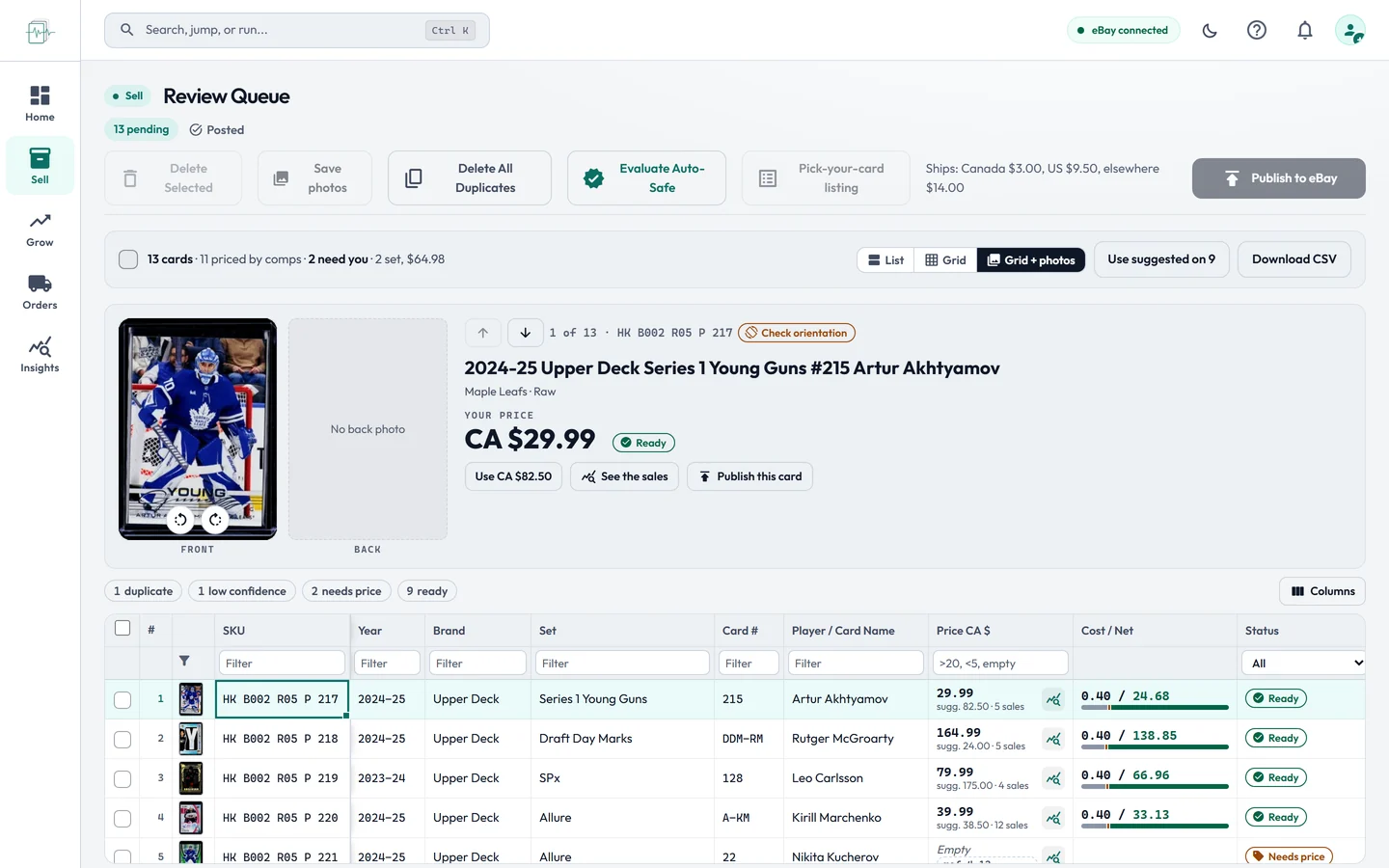
Step 3: Review the Results
Each card lands in Review with its details filled in and a price from recent sales of that exact card. Cards that need a human eye are marked, so you can check those and publish the rest.
Step 4: Correct if Needed
AI identification is accurate the vast majority of the time, but you can edit any field before proceeding. Common corrections include:
- Parallel variants that look similar (e.g., distinguishing a Silver Foil from a base card)
- Obscure insert sets from recent or niche products
- Serial-numbered cards where the number may not be clearly visible in the photo
What Makes This Accurate
The AI analyzes multiple visual elements simultaneously:
Front of Card
- Player photograph and jersey details
- Team logo and colors
- Set branding and design elements
- Parallel-specific visual treatments (foil, refractor patterns, colored borders)
- Rookie designation badges (e.g., “YOUNG GUNS” banner)
Back of Card
- Card number (most reliable identifier)
- Player name and biographical information
- Set name and copyright year
- Serial numbering (e.g., “127/249”)
- Manufacturer information
The combination of front and back gives the AI enough context to make high-confidence identifications even for parallel variants that are visually subtle.
Photo Tips for Best Results
Lighting
- Use even, diffuse lighting to avoid glare on foil and refractor cards
- Avoid overhead lights that create hot spots on glossy surfaces
- Natural daylight works well for most card types
Framing
- Fill the frame with the card and keep the background minimal
- Shoot straight-on and keep the card flat, angles distort the text
- Make sure the photo is in focus, especially the card number on the back
Card Condition
- Cards in top loaders or penny sleeves can still be scanned through the plastic
- Remove cards from thick magnetic cases if glare is an issue
- One card per photo or scan; multiple cards in a single image are not supported
- With a sheet-fed scanner, feed raw or penny-sleeved cards; top loaders and slabs are too thick for the feeder
Duplicate Detection During Scanning
When you scan a card, WaxEngine checks it against your existing active listings using 3-layer duplicate protection:
Exact Match
The scanned card matches an active listing with the same player, card number, year, AND parallel type. The scan will be flagged with a red DUPLICATE badge.
Likely Match
The scanned card matches player, card number, and year, but the parallel is different. This gets an amber POSSIBLE DUPLICATE badge. This is intentional, you might legitimately have both a base card and a parallel of the same card.
No Match
No existing listing matches. The card proceeds to pricing normally.
Duplicate detection compares against your latest analysis data. Run Analyze at least once so WaxEngine knows what you already have live on eBay.
From Scan to Listing
After scanning, each card goes through these steps:
- Scan: a photo or scan of the front and back
- Identification: player or card name, year, set, card number and parallel
- Duplicate check: compared with what you already have live on eBay
- Price: from recent sales of that exact card
- Review: you check what needs a look
- Publish to eBay: one click for the whole batch
Each step is visible in the app. You can pause at any point, for example scanning a whole stack, reviewing it in one sitting, then publishing together.
Title Generation
During the scan-to-listing pipeline, WaxEngine automatically generates an eBay listing title:
- Expands common abbreviations (e.g., “RC” to “Rookie Card”, “SP” to “Short Print”)
- Includes key search terms: player name, year, set, card number, parallel
- Fills up to eBay’s 80-character limit for maximum search visibility
- Avoids redundant words and uses the most search-relevant terms first
You can further optimize titles using the Title Optimization tool, which reviews and improves titles across your entire inventory.
Scan Allowance
The standard and founding plans include 1,000 AI card scans per month. Front and back count as a single scan, since both images are analyzed together for one card.
- Your remaining scans are visible in your account settings
- Need more? Extra scans are available at $4.95 per 250-pack, up to 3,000 scans a month in total (the 1,000 included plus up to 8 packs)
- Bulk stores listing thousands of cards a month: contact us for Pro or Enterprise pricing
- The allowance resets on the 1st of each month; extra scans you buy expire then too
Troubleshooting
”Low confidence” identification
- Check image quality, blurry or dark photos reduce accuracy
- Include a back photo with the card number clearly visible
- Try removing the card from its sleeve if glare is an issue
Slow scan response
- AI identification typically takes a few seconds
- Large image files take longer to upload, the app compresses automatically
- Check your internet connection if scans are timing out
Next Steps
- Pricing Engine, How the AI determines suggested prices for scanned cards
- Tier Management, What happens to your listings after they are published
- FAQ, Common questions about card scanning accuracy
Reading the manual before owning the machine? Everything documented here is live in the 7-day free trial (up to 200 scans), no credit card. Try it on your own store →